Your New Email Security Tools
How to manage spam & phishing in Outlook / Microsoft 365
As we transition your email security to Microsoft 365's built-in spam and phishing protection, here's a quick visual guide showing your team exactly how to manage junk mail going forward.
Reporting a Junk / Spam Email from Your Inbox
When you receive spam in your Inbox, select it and use the Report button in the Outlook ribbon. Reporting helps Microsoft's filters catch similar emails automatically in the future.
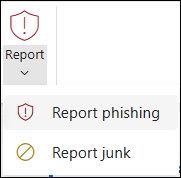
Select the email, then click Report in the top ribbon and choose Report Junk. The email will be moved out of your Inbox immediately.
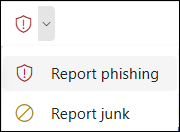
The same Report button appears in the simplified ribbon. Click it and choose Junk or Phishing as appropriate.
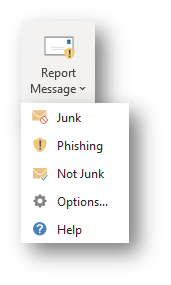
If your organization uses the Report Message add-in, the dropdown gives you three options in one place: Junk, Phishing, or Not Junk.
Viewing Your Junk Email Folder
Occasionally, legitimate emails may end up in your Junk Email folder. Check it once or twice a week so nothing important gets missed.
- 1 In the left sidebar of Outlook, click Junk Email.
- 2 Review the emails — most will be genuine spam, but occasionally a real email may appear.
- 3 If you find a legitimate email, follow Section 3 below to rescue it.
Reporting "Not Junk" — Rescuing Legitimate Emails
If a good email ends up in your Junk folder, you can move it back and teach the filter it's safe.
Go to your Junk Email folder, select the email, then click Report Message → Not Junk. The email returns to your Inbox and the sender is added to your Safe Senders list.
You can also right-click any email in the Junk folder and choose Report → Not Junk from the context menu.
What Happens with Suspected Phishing Emails
Microsoft 365 automatically detects most phishing attempts. Here's what you'll see:
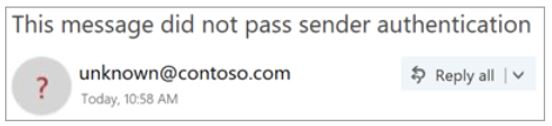
When Outlook can't verify a sender's identity, it shows a "?" in place of their profile photo. Treat these emails with extra caution and do not click any links.
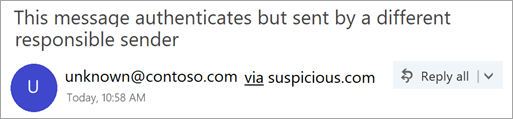
A "via" tag means the actual sending domain is different from the displayed name — a common phishing trick. If you don't recognize it, do not interact with the email.
Select the suspicious email and click Report → Report Phishing in the ribbon. This notifies Microsoft and helps protect other users from the same attack.
Urgent language ("Act now!"), requests for passwords, links that don't match the sender's domain, unexpected invoices or attachments, and generic greetings like "Dear Customer."
That covers the key scenarios your team will encounter. Microsoft 365's filters will continue improving as your team reports emails. If you have any questions during the transition, don't hesitate to reach out to us.